
Using the app
OpenKey is the mobile and desktop client for Android, iOS, macOS, Linux, and Windows. Core vault features are free; OpenKey Pro unlocks extras. Your vault lives encrypted on the device; a self-hosted server is optional for sync. Install it from the official store or download channel for your platform.
Install
- Get OpenKey from the download channels for your platform (stores or official GitHub Release packages).
- Open the app and create or unlock a vault with your master password.
Related packages in this project include the server, browser extension, and CLI.
Free vs OpenKey Pro
Core vault features work offline without a subscription. On Android, iOS, macOS, Windows, and Linux, Pro raises limits and unlocks extras. On platforms without store IAP (typically Windows/Linux), a paired Nearby peer can share a LAN Pro attestation — convenience only, not a cryptographic proof of purchase (store-IAP platforms ignore LAN Pro).
| Free | Pro | |
|---|---|---|
| Login entries | Up to 50 | Unlimited |
| Collections (folders) | Up to 3 | Unlimited |
| Payment cards | Up to 3 | Unlimited |
| Crypto wallets | Up to 3 | Unlimited |
| Developer secrets | Up to 3 | Unlimited |
| Self-hosted server sync | Yes | Yes |
| Autofill / passkeys (system) | Yes | Yes |
| Browser extension bridge | Yes | Yes |
| Import from other managers | Yes | Yes |
| Export (OpenKey / Bitwarden / CSV / KeePass / …) | — | Yes |
Encrypted local backup (.okbak) | — | Yes |
| Nearby LAN vault sync | — | Yes |
| Organizations & sharing | — | Yes |
| Attachments on entries | — | Yes |
| Custom app icon | — | Yes |
| Share Pro status over Nearby (non-IAP platforms) | — | Yes |
Manage subscription under Settings → OpenKey Pro where store billing is available. Public overview: Pricing.
Create or unlock a vault
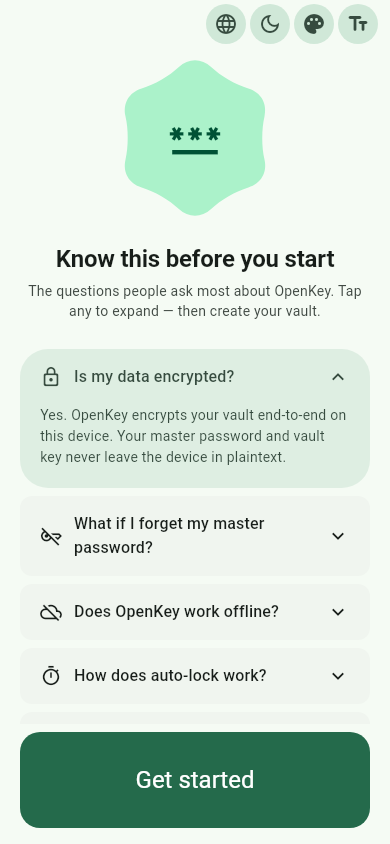
- Choose a strong master password (12+ characters with mixed types recommended), or restore a Pro encrypted
.okbakfrom the first-run screen (same master password as the backup). - Acknowledge the vault notices: there is no recovery if you forget the master password; data is encrypted on device; backups matter.
- Unlock with the master password whenever you open the app.
The master password never leaves the device in plaintext.
Everyday use
Vault home
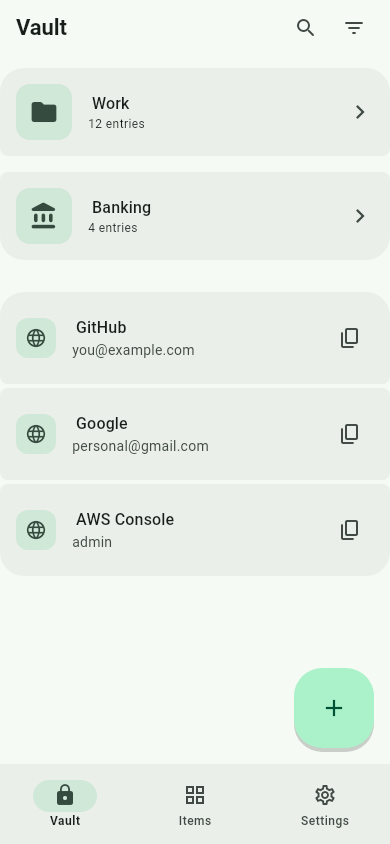
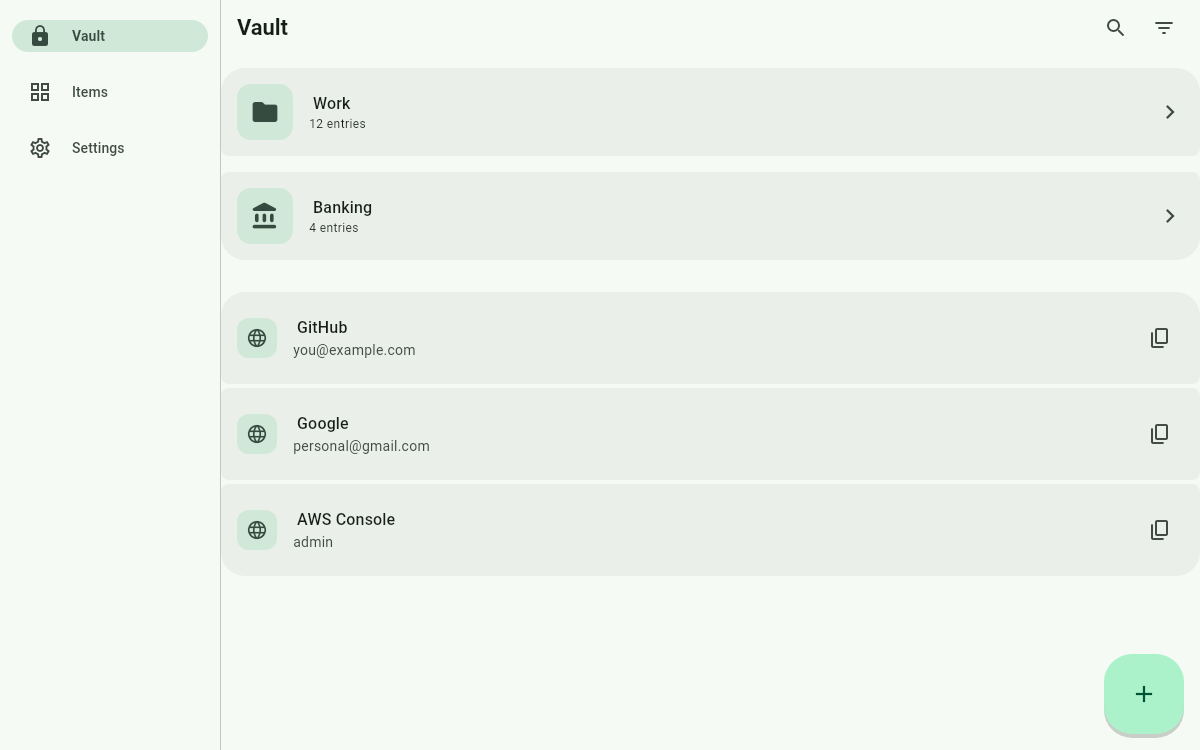
- Bottom navigation: Vault · Items · Settings.
- Browse collections (folders) and password entries. Collections can be nested (a folder inside another folder).
- Search, filter by tags, and open an entry to copy username/password or view custom fields.
- Create entries with URLs, notes, icons, and TOTP (paste a secret /
otpauthURI, or scan an authenticator QR). - Attachments (Pro): add encrypted files to a login (about 20 MB per attachment). They sync as ciphertext through your server; OpenKey JSON export omits attachment blobs — use a
.okbakbackup for a full copy.
Password generator
Open Settings → Password generator (or the generator from an entry form) to create strong passwords with your length and character rules.
Cards, crypto, and secrets
The Items tab is a hub for reserved vault areas:
- Payment cards — Visa, Mastercard, Amex, Discover, UnionPay, RuPay, Elo, Hipercard, Mir. Group cards into banks (issuer folders); create, rename, or move cards between banks.
- Crypto wallets — addresses, private keys, seed phrases. Group wallets into folders (for example cold storage).
- Developer secrets (API tokens, SSH keys,
.envsnippets) — group by device / machine. Also used by the CLI.
Organizations and sharing
Share collections or individual items with other OpenKey users on the same server (Pro). Org shared vault entries live under org collections and are encrypted with the org key (server sees ciphertext only). The current mobile/desktop Settings → Data page does not list Organizations; sharing UIs live in the browser extension (standalone/server mode) and on the server API. Step-by-step: Sharing & organizations.
Settings map
Settings uses three sections: Account, Tools, and Help.
| Area | What it does |
|---|---|
| Account | Local vault / signed-in email; OpenKey Pro subscription where store billing is available |
| Appearance | Theme, custom app icon (Pro), high contrast, dynamic colors, font, language |
| Security | Auto-lock, biometric unlock, system Autofill / passkeys (not a separate Autofill page), screenshot protection where supported |
| Nearby devices | LAN vault sync (Pro) — its own row, not under Data |
| Password generator | Default generation options |
| Data & sharing | Import/export, Pro .okbak backup/restore, browser extension, Termux/CLI, self-hosted server, reset local vault |
| Help | In-app FAQ and About |
Android Autofill extras (shown when Autofill is on): inline suggestions vs popup, and require biometrics before fill.
Connect a self-hosted server
- Run OpenKey Server.
- Settings → Data → Self-hosted server → set URL → Register or Login → Sync now.
Details: Install the server.
Nearby LAN vault sync (Pro)
Sync the same vault across your devices on the local Wi‑Fi without a server. Full walkthrough (QR pairing, send-entry, LAN Pro, firewall tips): Nearby.
- Unlock OpenKey on both devices and open Settings → Nearby devices.
- Start Nearby on both. Prefer Scan pairing QR on one device while the other shows its QR; or type the short code. Then tap Link vault.
- Devices must share one vault key (same fingerprint). If keys differ, the receiving device can adopt the peer’s key (replaces local vault data after master-password confirmation).
- After linking, changes sync automatically while both are unlocked and advertising; use Sync now for a manual catch-up. You can also Send to device to push a single entry over the LAN.
- Visible on local network is remembered: after you enable it once, Nearby resumes automatically the next time you unlock the vault (paused while locked).
- Optional Trusted networks only: add your home/office Wi‑Fi SSIDs; Nearby pauses on unknown networks and resumes when you return.
- Trusted devices: after one pairing + vault link, peers reconnect and sync automatically whenever Nearby is on — no re-pairing.
LAN sync moves ciphertext only (same LWW-by-revision model as the server). It is not a backup — keep an encrypted local backup as well.
Autofill and browser
- Mobile / desktop Autofill: enable OpenKey as the system password & passkey provider under Settings → Security. On Android you can also pick inline vs popup presentation and require biometrics before fill. On desktop, that toggle registers the native messaging host for the browser extension.
- Browser: install the extension; on desktop, unlock the app and register the native host, or unlock the extension against your server in standalone mode.
- CLI: Settings → Data → Termux / CLI (or CLI on desktop) copies
npm install -g openkey-cliand, on Android,OPENKEY_NATIVE_PORT/OPENKEY_NATIVE_TOKEN. Guide: CLI. - Offline vault link (optional): Settings → Browser extension → Copy offline vault link for air-gapped bootstrap of the extension against the desktop app.
Import, export, and backup
Full walkthrough: Import & export.
- Import / export: move passwords in or out (Bitwarden JSON, Chrome CSV, LastPass CSV, KeePass
.kdbx, 1Password CSV, OpenKey JSON). Export requires Pro. Export decrypts on device — treat the file as sensitive. - Local backup / restore: encrypted device backups (
.okbak) — Pro. You can restore on first run or later under Backup & Restore. - Reset local vault: Settings → Data → Reset local vault wipes this device’s vault (not the server). Prefer a backup first.
- Prefer offline backups even if you use server sync — a forgotten master password cannot be recovered from the server.
Good habits
- Use a unique, strong master password.
- Sync after major changes when using a server.
- Keep at least one offline backup.
- Lock the vault when stepping away from a shared machine.
Next: Download · Nearby · Browser extension · Sharing · Import & export · Install the server · FAQ · CLI